
Connect to TracsConnect
AutoVitals setup is a simple key-based connection.
Before you start
Section titled “Before you start”You should have:
- AutoVitals dashboard access
- The AutoVitals key for the shop
- A TracsConnect dashboard account that can manage integrations
- A known inspection report to test after saving
Step 1: Get your AutoVitals key
Section titled “Step 1: Get your AutoVitals key”Sign in to AutoVitals and get the key for the shop you are connecting. If you do not know where to find it, ask your AutoVitals administrator or support contact.
Step 2: Open AutoVitals in TracsConnect
Section titled “Step 2: Open AutoVitals in TracsConnect”Sign in to your dashboard, click Integrations in the sidebar, and find the AutoVitals card.
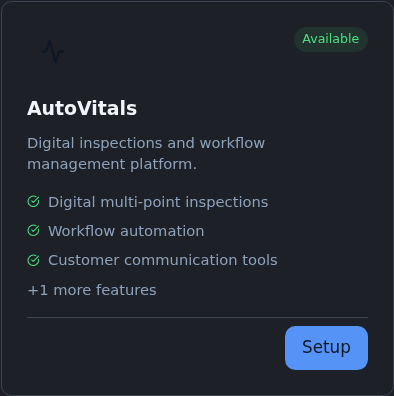
Click Setup. A setup window opens.
Step 3: Paste the key
Section titled “Step 3: Paste the key”Paste the key into API Key.
TracsConnect stores the secret value securely and masks it after saving.
Step 4: Save
Section titled “Step 4: Save”Click Save API Key at the bottom of the setup window.
Step 5: Confirm a report
Section titled “Step 5: Confirm a report”Open a supported customer or repair order workflow and confirm a known AutoVitals inspection report appears where staff expect it.
If it does not, jump to Troubleshoot.
What happens next
Section titled “What happens next”TracsConnect can show supported AutoVitals inspection content for the connected shop. Start with one known repair order before expanding the workflow.