
Customer booking flow
Native Booking gives customers a guided appointment request flow that follows your Scheduling setup.
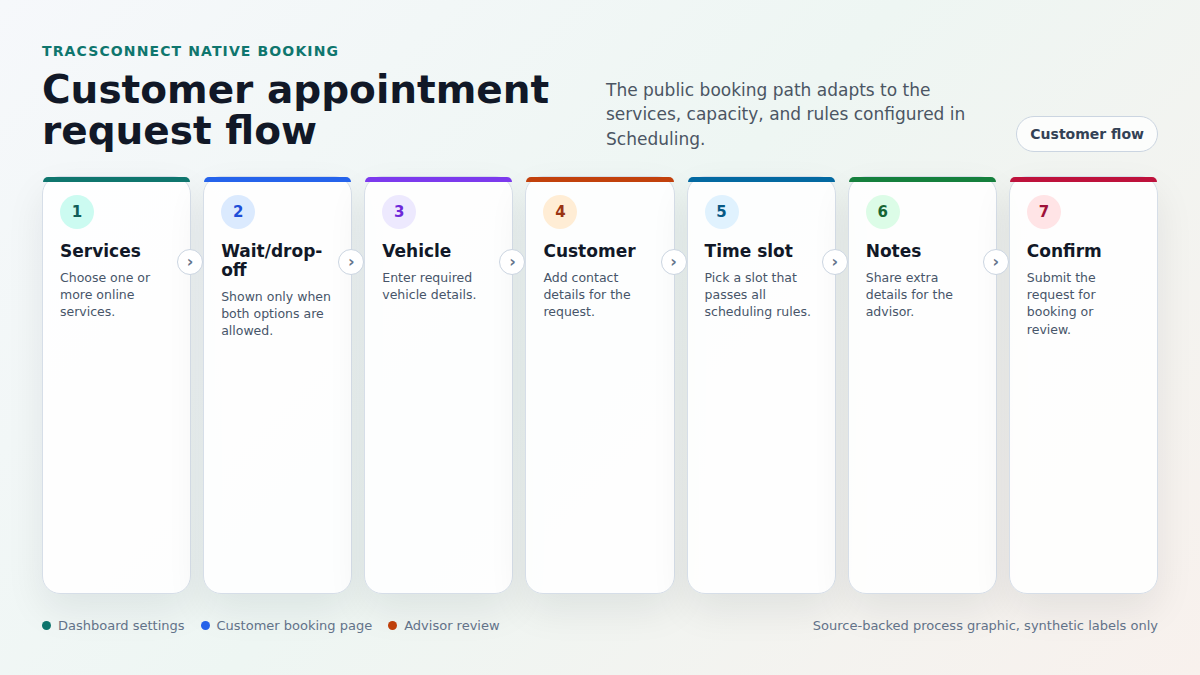
Step 1: Choose services
Section titled “Step 1: Choose services”Customers start by choosing one or more online services. The list comes from the services you enabled in Scheduling > Services.
If the selected services cannot be booked together, the customer must change the selection before continuing.
Step 2: Choose wait or drop-off
Section titled “Step 2: Choose wait or drop-off”The wait/drop-off step appears only when both choices are allowed for the selected services.
If the selected services allow only one option, the flow skips this choice and uses the allowed option.
Step 3: Enter vehicle details
Section titled “Step 3: Enter vehicle details”Customers enter vehicle details next. Mileage, VIN, and license plate become required only when the selected services require them.
Step 4: Enter contact details
Section titled “Step 4: Enter contact details”Customers enter their contact details. First name and phone are the default required details unless the selected services ask for more.
Step 5: Pick an available time
Section titled “Step 5: Pick an available time”The time picker shows available slots based on:
- Public booking windows
- Slot interval
- Minimum lead time
- Booking horizon
- Capacity
- Reserved internal capacity
- Closed days, holidays, and partial blocks
- The total duration of the selected services
Step 6: Add notes and confirm
Section titled “Step 6: Add notes and confirm”Customers can add notes, review the request, and submit it.
Services that require advisor approval hold for review instead of being treated as immediately confirmed.
What staff should check
Section titled “What staff should check”- Open Scheduling > Services.
- Confirm each service has the right customer-facing name and duration.
- Confirm waiter and drop-off rules match the shop’s real workflow.
- Confirm vehicle detail requirements are strict only where they help the advisor.
- Run the availability preview after changing hours, capacity, policies, or blocks.